JORDAN ROWE REMOTE SUPPORT

Detected System: Windows

Or Choose Your Device

3 Simple Steps

What To Click

1 Step 1
Step 1: Open the downloaded file

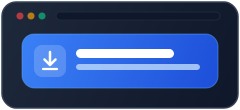
Open the File

Click the blue button above and open the file.

2 Step 2
Step 2: Click Yes to allow permission

Click "Yes"

Click "Yes" if Windows asks for permission.
3 Step 3
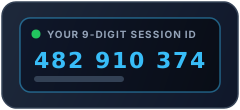
Step 3: Read your 9-digit code to Jordan

Read Your Code

Read the 9-Digit ID on your screen to Jordan.

Extra Help

Connection Check & Permission Help

Pre-Flight Connection Check Check your connection speed if asked by Jordan
Device Detecting...
Screen Detecting...
Connection Click "Run Check"
Mode QuickSupport
Permission Help (Mac, Windows & Mobile) Where to click if your device asks for Screen Recording or Accessibility
macOS

macOS

  1. Open System Settings → Privacy & Security.
  2. Turn ON Screen Recording for RustDesk.
  3. Turn ON Accessibility for RustDesk.
Windows

Windows

  1. Click Yes when the User Account Control window appears.
iOS Android

iOS & Android

  1. iOS: Tap Start Broadcast.
  2. Android: Tap Start Now.